
 TabSwitcher for Mac
Your next app,
at a glance.
A familiar card stack for the work you have open. See your apps, find your place, and move between them with a few keys.
Explore TabSwitcher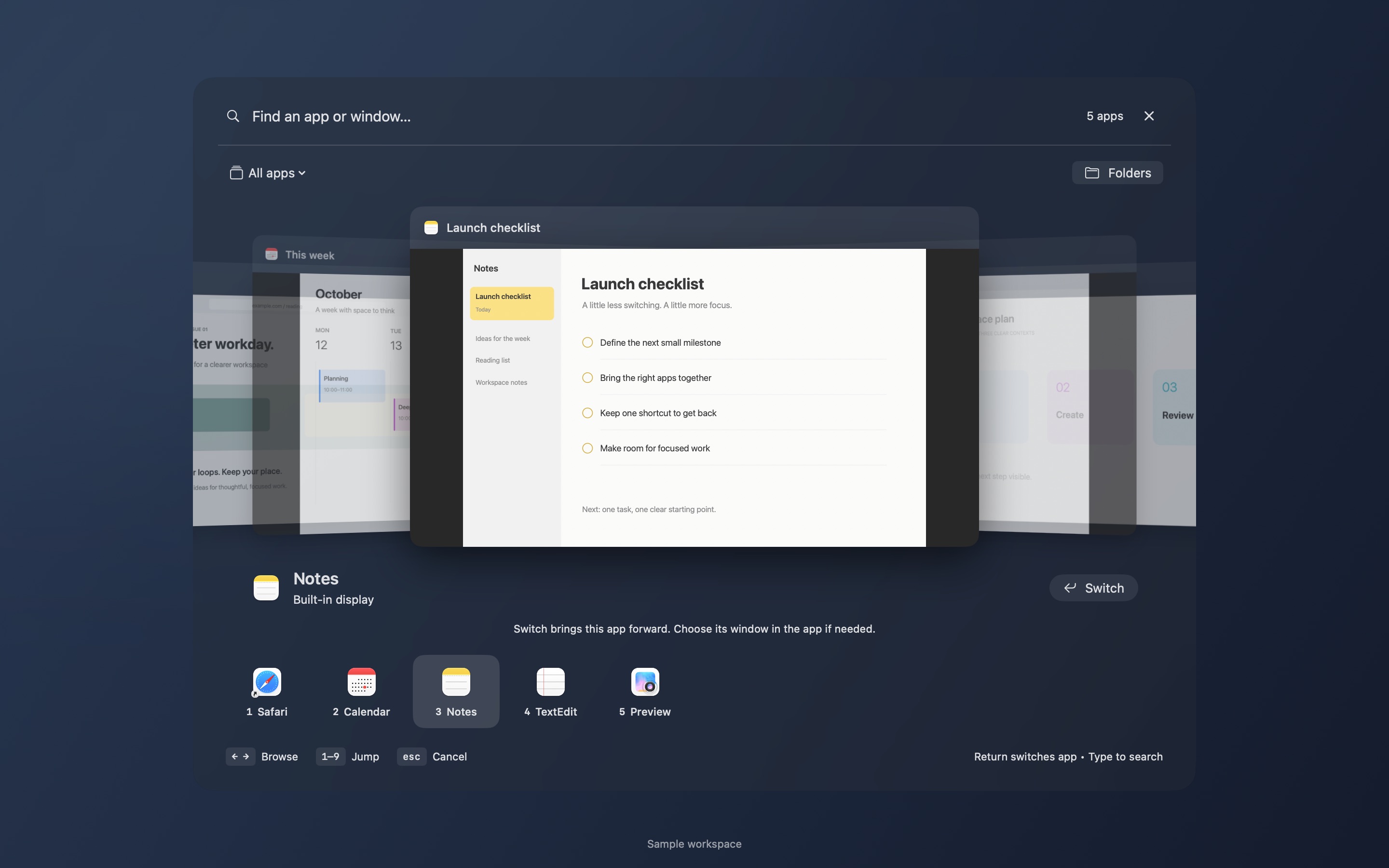
A shorter way back
to what you’re doing.
The app you leave becomes your first recent destination. Move between a document and your browser, or a conversation and your work, without finding them all over again.
-
⌃⌥Tab
Open your apps
Press the shortcut to open the stack. It stays open when you release the keys.
-
Type an app name
Find your place
Search by app name, or an available window title with preview access enabled.
-
Return
Get back to work
Choose with the arrows and press Return to switch. Escape brings you back.
Preview cards help you recognize your destination. Selecting one brings its app forward; macOS and that app choose the active window.
One shortcut for apps.
Another for your folders.
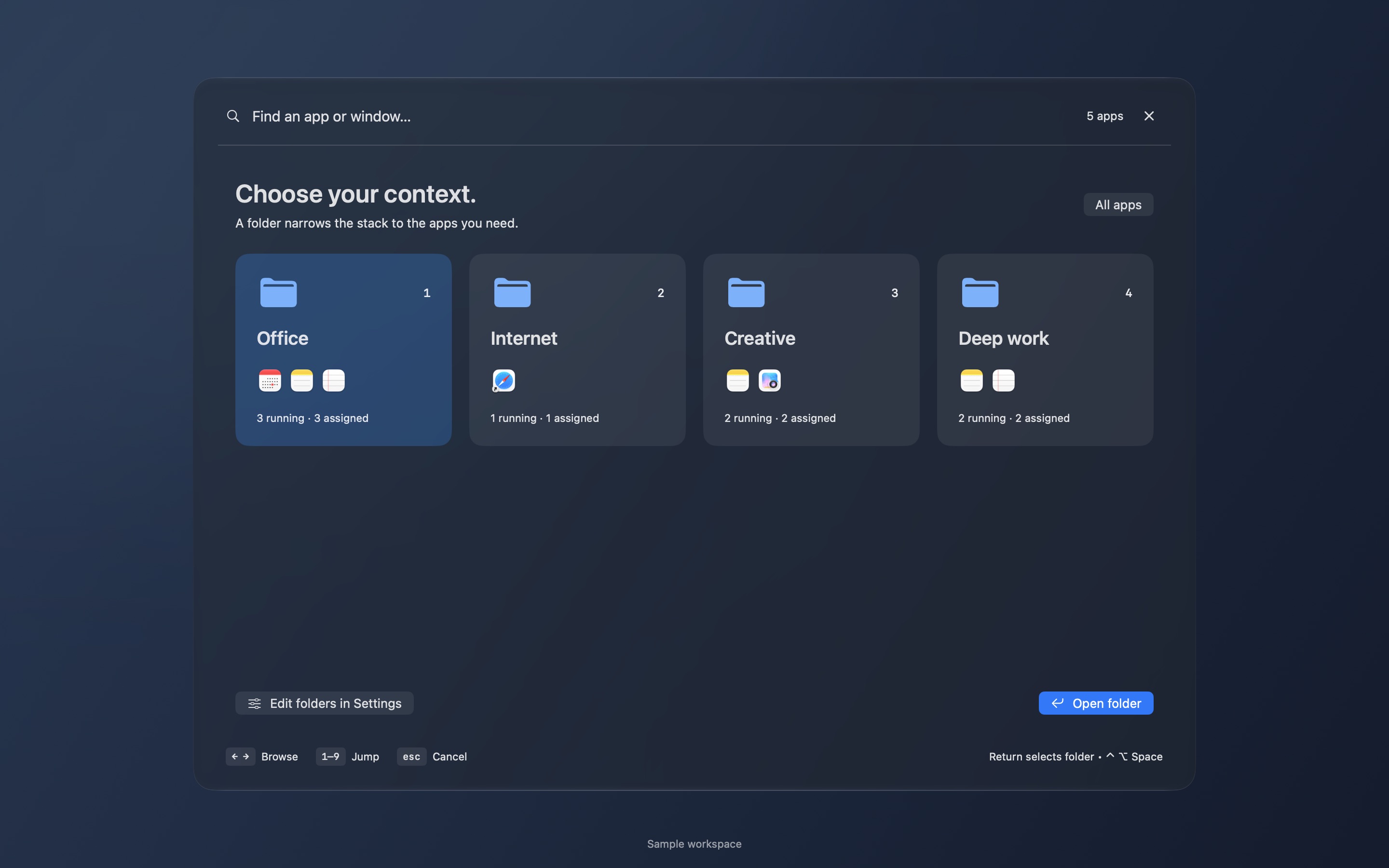
Keep Office apps together. Give your browsers an Internet folder. Or gather the apps for a project into one place.
Open folders with Control + Option + Space. Each folder shows its running apps in recent order, while your all-app switcher stays a separate shortcut away.
Keep your everyday apps
on familiar keys.
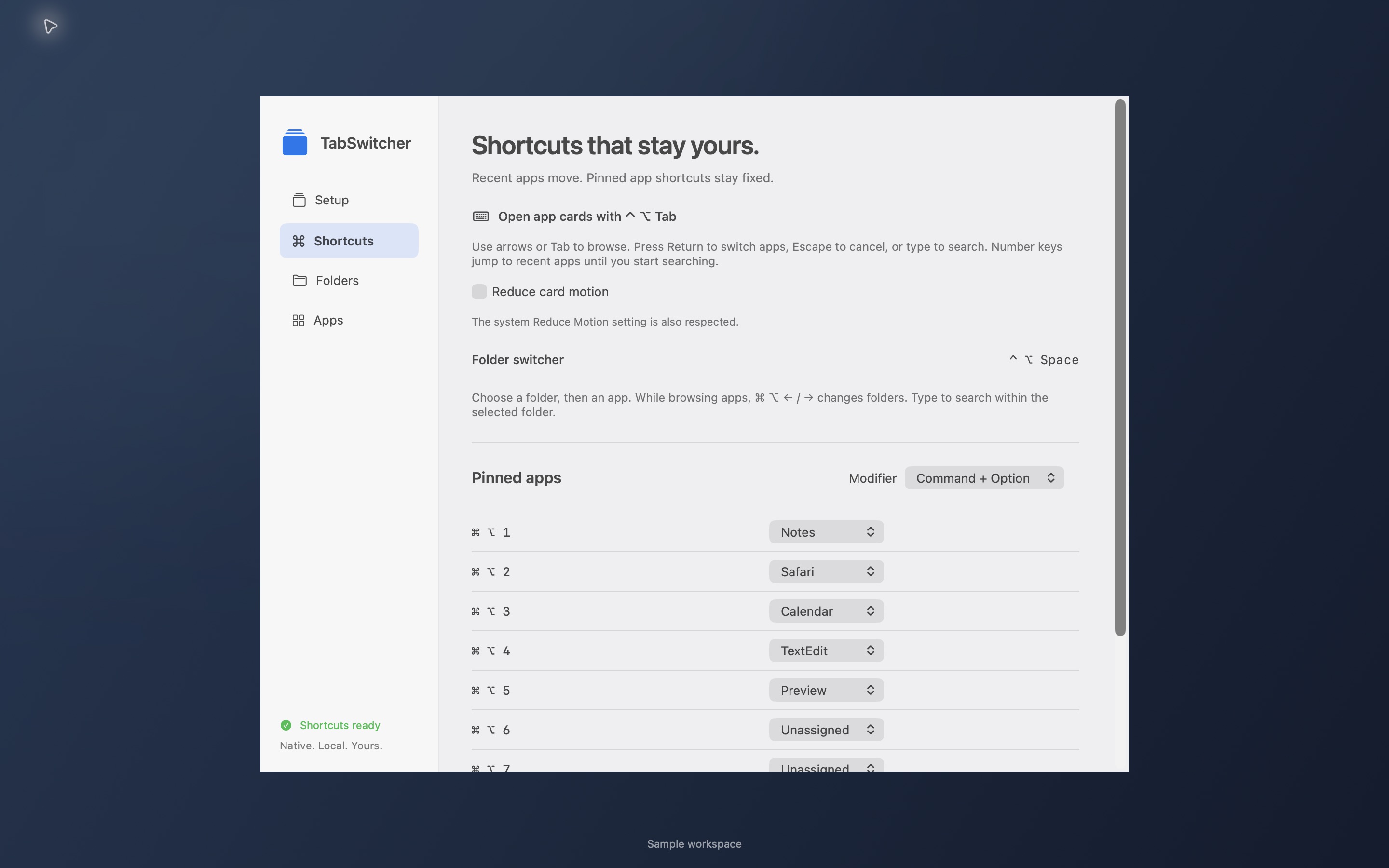
Assign apps to slots 1–9 in Settings. Your pinned shortcuts keep their destinations as the recent-app list changes, and can launch a pinned app after it has closed.
Choose Command, Command + Option, or Control + Option as your pin modifier. Assigned combinations belong to TabSwitcher, so choose ones that fit the shortcuts you already use.
A rhythm for your keyboard.
A few shortcuts cover the everyday moves. Start with recent apps, then add folders and pins as your workflow takes shape.
Read the complete guide- Browse recent apps
- ⌃⌥TabAdd Shift to browse backward.
- Browse folders
- ⌃⌥SpaceChoose a folder, then an app.
- Choose or cancel
- ReturnorEscSwitch to your choice, or return to the app you left.
- Go to the previous app
- ⌘⌥`Repeat to move between two apps.
- Return to a saved app
- ⌘⌥RSet it first with “Set Return App” in the menu bar.
- Open a pinned app
- ⌘⌥1–9The default after you assign your app slots.
While browsing, numbers 1–9 choose an app or folder. Once you begin searching, numbers become part of your query.
Your previews
stay on your Mac.
Turn on optional Screen Recording access to see still previews of your windows. The images stay in memory on your Mac. App switching and app-name search also work with icons, without preview permission.
No TabSwitcher account is needed. The app has no analytics or advertising, and does not upload your app names, window titles, or search text.
Read TabSwitcher’s privacy informationKeep your work close.
TabSwitcher is coming soon to the Mac App Store.
Planned at US$5.99 as a one-time purchase.